uArm CommandLine (CLI) Tools
What is uArm CommandLine (CLI) Tools?
uArm cli tools provide the command line tool.
- uarm-firmware, upgrade your firmware, check latest firmware version
- uarm-calibrate, uArm calibration tool
- uarm-miniterm, uArm Mini terminal, including control function
- uarm-listport, list all connected uArm Port numbers.
uArm CommandLine Tools installation
Windows
This guide would help you install all the environment uArm Tools need in windows.
Requirement
- Windows 7 or above
- Administrator privilege
Online installation script
- Open Powershell with Administrator
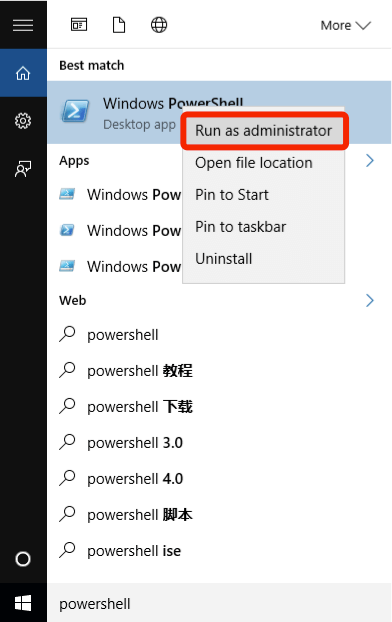
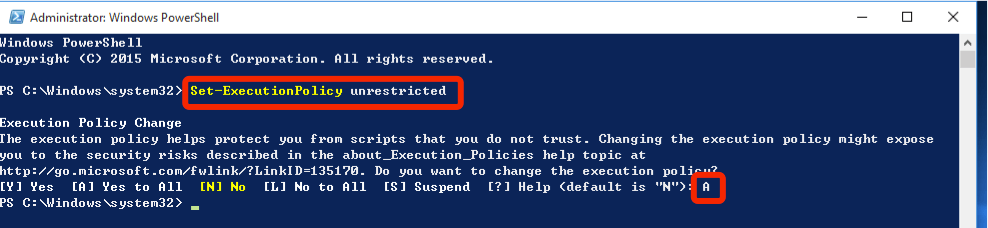
Run as administrator - Please input the command to change the Powershell executionpolicy
Set-ExecutionPolicy unrestricted, Press "A" to approve
Powershell script execution policy default is restrict, it means that doesn't allow any script running. please refer Get-ExecutionPolicy
 - input this online script
 iex ((New-Object System.Net.WebClient).DownloadString('http://download.ufactory.cc/tools/windows/install.ps1'))
Install with Proxy
if your network quality doesn't well, it supports proxy.
please run this command before you execute the online script: $env:chocolateyProxyLocation = 'http://address:port'
what is the script actually did? - chocolatey, Software Management. Automated. https://chocolatey.org/ - Python2, (installed by chocolatey), uArm tools is based on python environment - pip, (installed by chocolatey), this python tool will help us to download uArm tools. - pyuarm, uArm python library include all python environment
Tools usage
Now you could use below command in terminal
uarm-firmware- upgrade your uArm firmwareuarm-listport- show all connected uArmuarm-calibrate- calibrate uArmuarm-cli- Console
MacOS
Step 1 - Open terminal.app

terminal.app via Spotlight SearchStep 2 - Enter Command to Start Installation
Step 2.1 Copy & paste the command below to install uArm Enviroment:
bash -c "$(curl -fsSL http://download.ufactory.cc/tools/macosx/install.sh)"
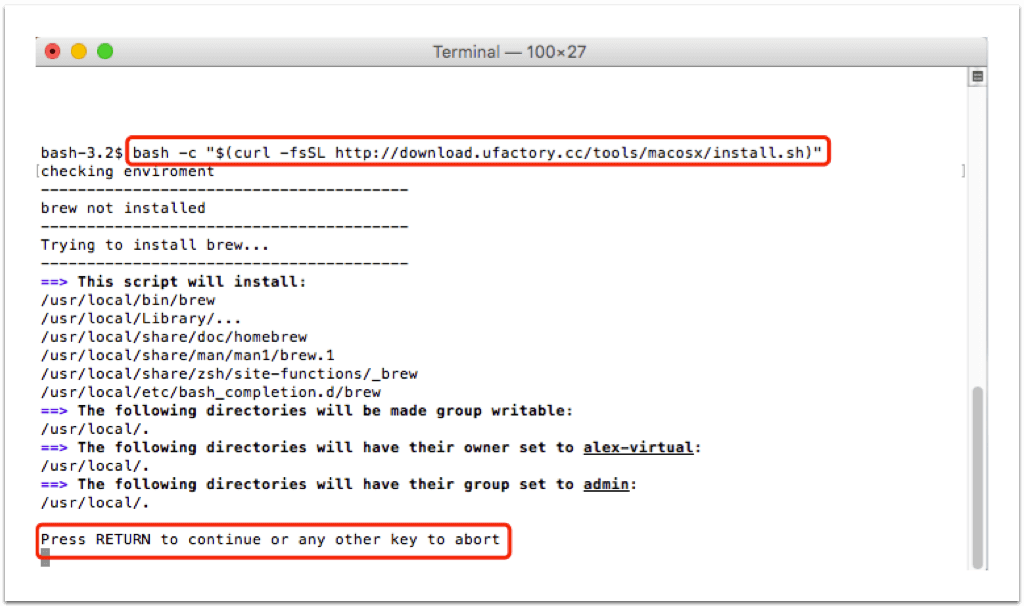
- Press Enter in below message: Press RETURN to continue or any other key to abort
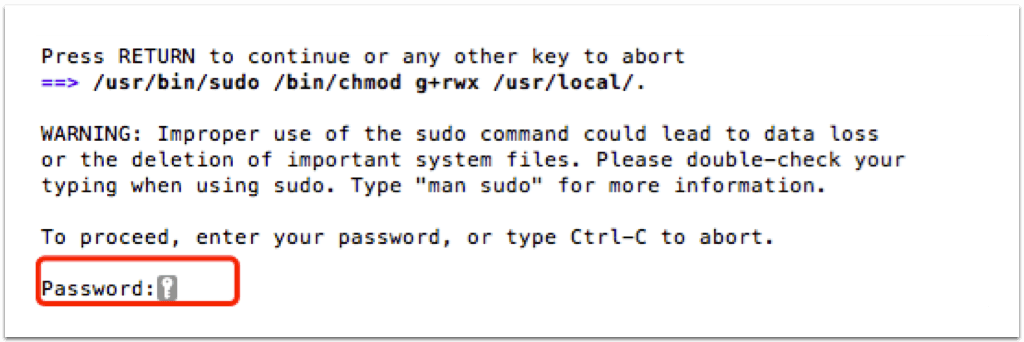
- Input your Mac user password
Step 2.2 When the installation is finished, you will see the words below:
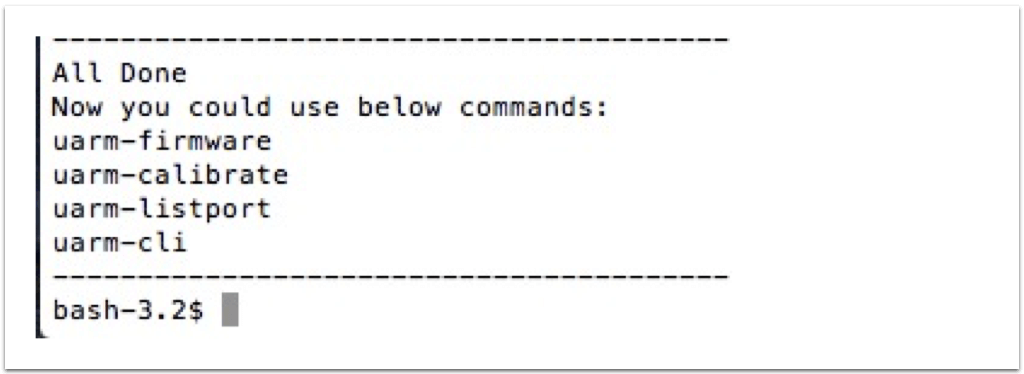
Step 2.3 After installation, you could use commands below:
- uarm-listport - show all connected uArm
- uarm-firmware - upgrade your uArm firmware
- uarm-calibrate - calibrate uArm
- uarm-cli - uArm Miniterm
uArm CommandLine Tools Guideline
Notice Please make sure you install the uArm cli before. please refer uArm CLI
How to run cli?
Windows
uarm-listport
list all connected uArm ports.
eg.
    $ uarm-listport
    /dev/cu.usbserial-AI04I17F
    /dev/cu.usbserial-A6031WSQ
    2 ports found
uarm-firmware
firmware helper could help you upgrade your uArm Firmware to latest version.
You could use uarm-firmware -h to list all the usage:
usage: uarm-firmware [-h] [-d] [-f [FORCE]] [-c [CHECK]] [-p [PORT]] [-u]

optional arguments:
  -h, --help            show this help message and exit
  -d, --download        download firmware into firmware.hex
  -f [FORCE], --force [FORCE]
                        without firmware path, flash default firmware.hex,
                        with firmware path, flash the firmware, eg. -f
                        Blink.ino.hex
  -c [CHECK], --check [CHECK]
                        remote - lateset firmware release version, local -
                        read uArm firmware version
  -p [PORT], --port [PORT]
                        provide port number
  -u, --upgrade         Upgrade firmware if remote version newer than local
                        version
-
uarm-firmware -d
This will download the latest firmware from http://download.ufactory.cc/firmware.hex
And you could find the latest version number here http://download.ufactory.cc/version
eg.
    uarm-firmware -d
    [1] - /dev/cu.usbserial-A6031WSQ
    [2] - /dev/cu.usbserial-AI04I17F
    Please Choose the uArm Port: 2
    Downloading firmware.hex...
    Downloading: 100% [#########################################] Time: 0:00:01  50.41 kB/s
-
uarm-firmware -f
-fargument will force to flash the hex file to uArm with the port.
format: -f firmware_path if no firmware path provided, default usefirmware.hexuarm-firmware -f- uarm-firmware -u-u or --upgradeargument, will compare local uarm firmware with remote latest firmware version, if update version is available, you could upgrade the version -
uarm-firmware -p
-por--port, specify the port number. You could useuarm-listportto list the uarm ports first. eg.uarm-firmware -p /dev/cu.usbserial-AI04I17Fyou could combine with otheruarm-firmware -u -p /dev/cu.usbserial-AI04I17F
uarm-calibrate
If you bought the uArm Metal after April 2016, please DON’T calibrate it, because all uArm were already calibrated before sale. It might break uArm Metal with frequent calibration.
If you still need to calibrate your uArm. Please read this instruction carefully.
Preparation
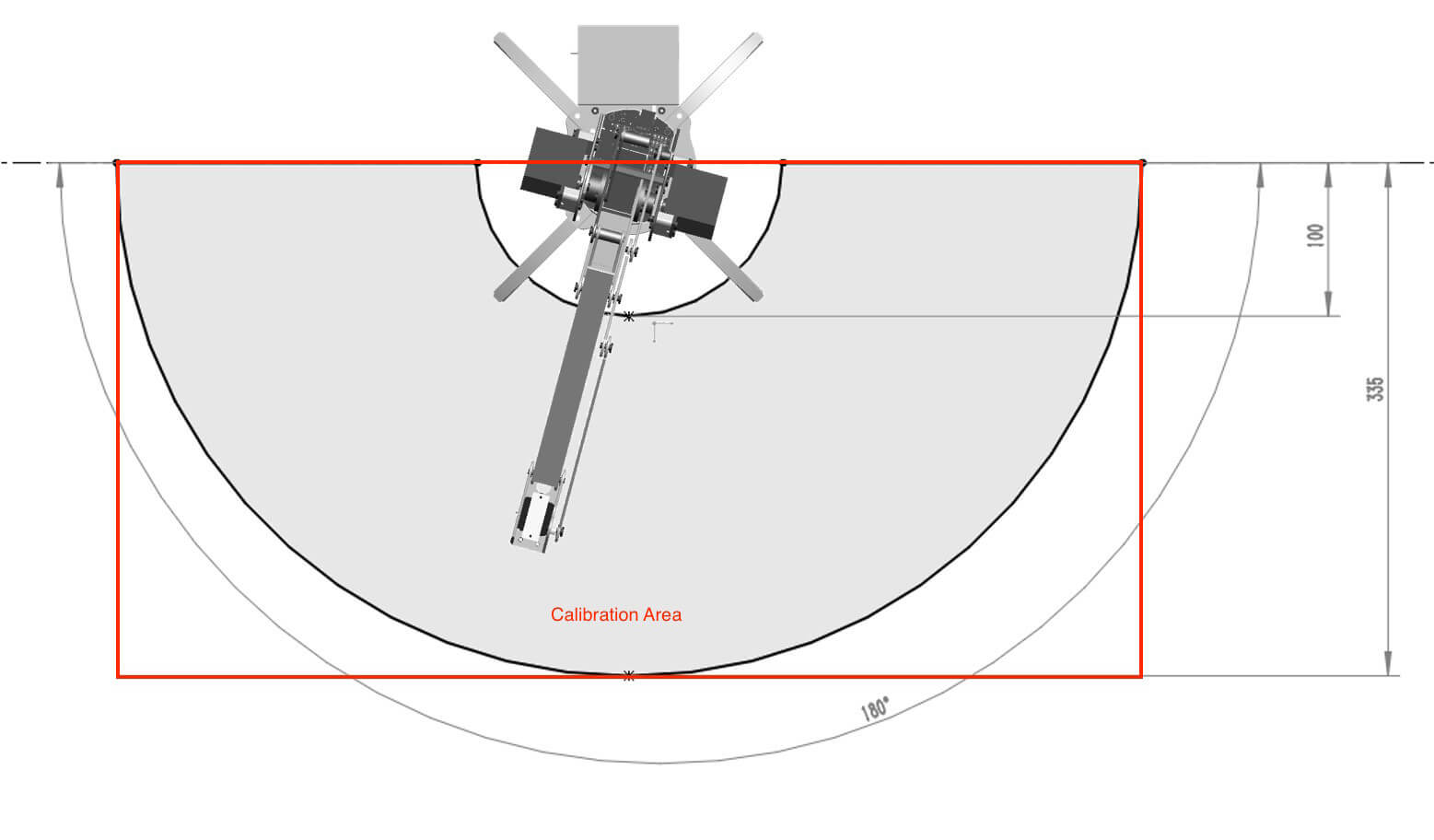
Notice: While calibrating, uArm will turn and stretch itself to reach the correct positions (refer to PIC1). Some positions are located under the desk, so please make sure it is free from any object may be interrupt calibration process.
Upgrade firmware to latest version
Make sure you have upgraded your firmware to latest version, you could use uarm-firmware -c remote
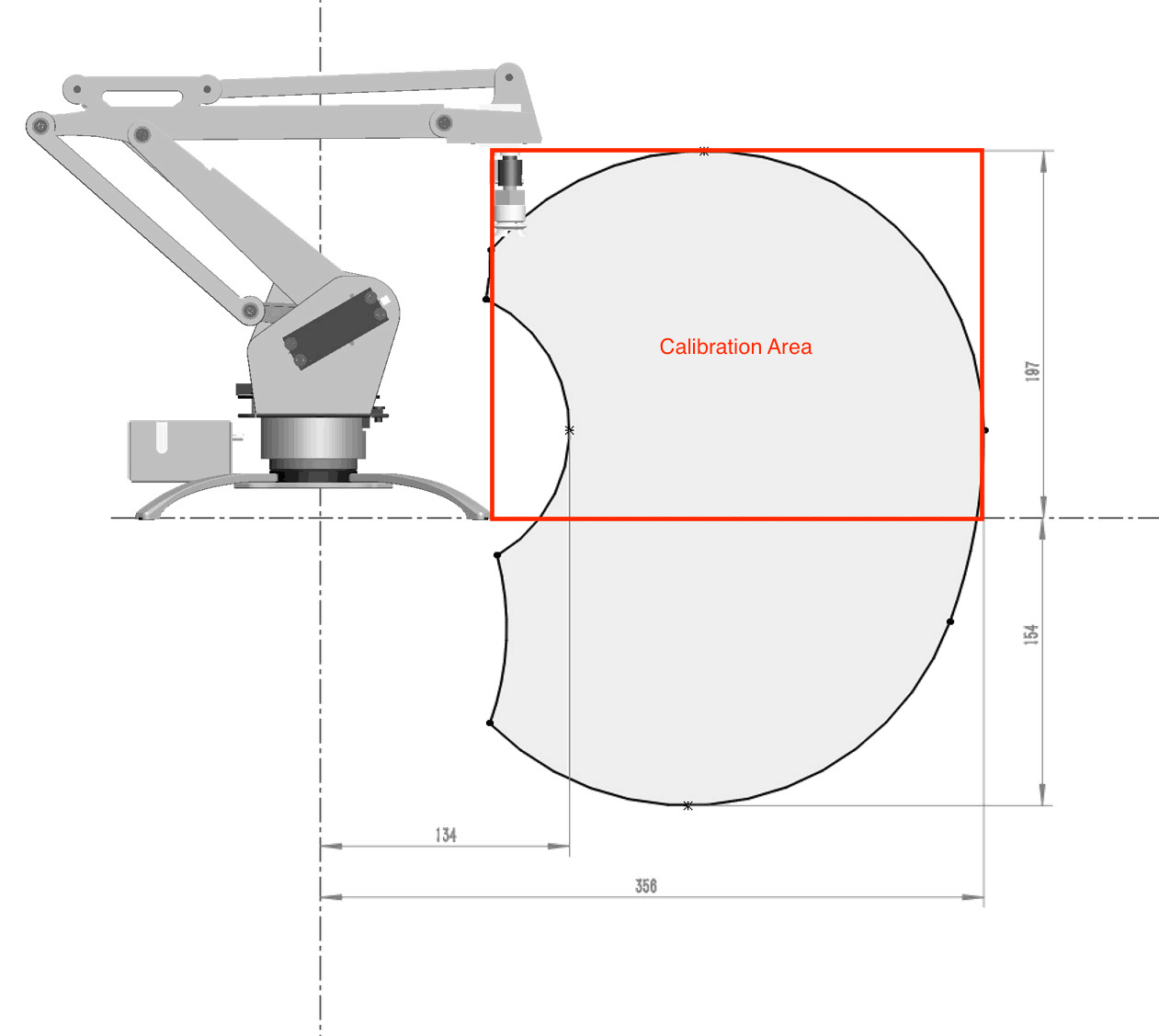
Working Area
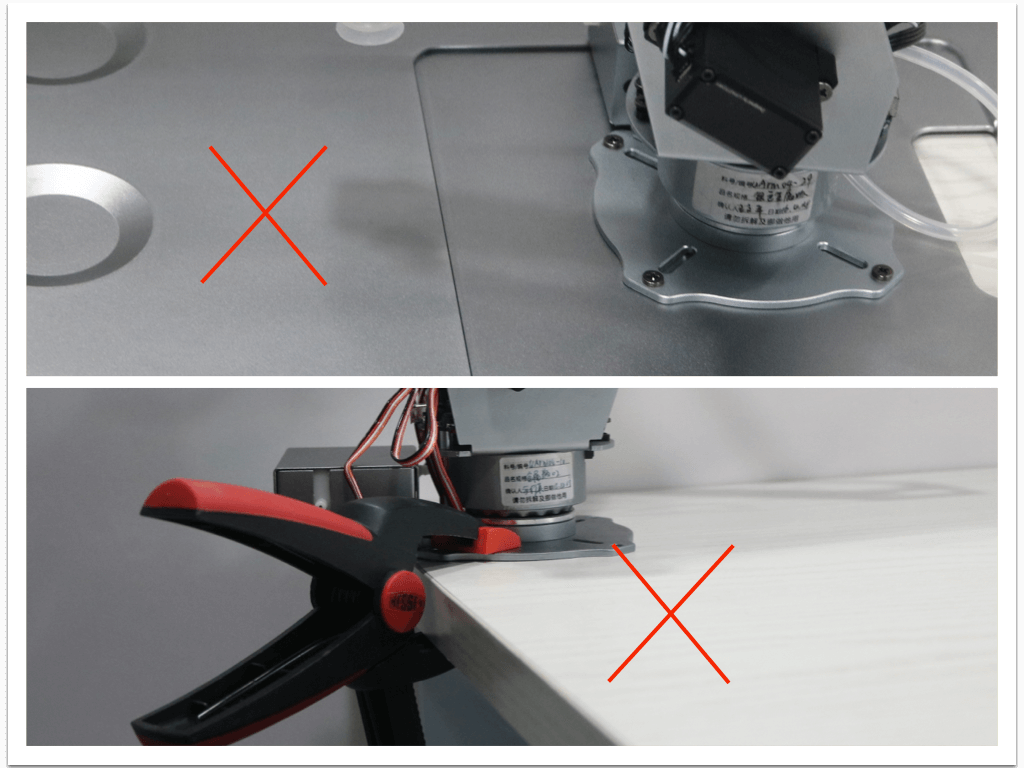
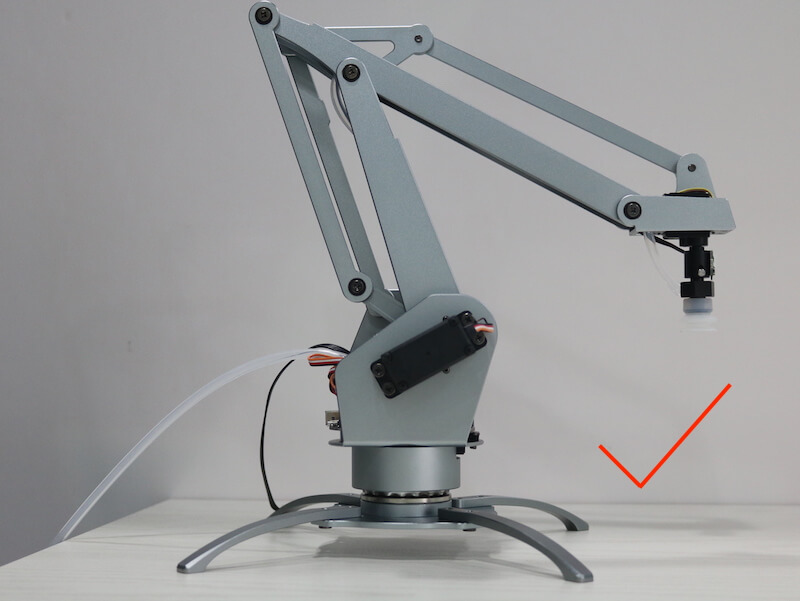
Please make sure you have a clear Desktop. Below is calibration working area.
Start Calibration
Now we can startup calibration.
- Open terminal, input
uarm-calibrate - If your uArm has been calibrated, it will display the below message, If you still want to calibrate your uArm, Please press "Y" to continue
    uarm-calibrate
    [1] - /dev/cu.usbserial-AI04I17F
    [2] - /dev/cu.usbserial-A6031WSQ
    Please Choose the uArm Port: 1
    Initialize uArm, port is /dev/cu.usbserial-AI04I17F...
    Firmware Version: 1.7.3
    uArm has been calibrated already, Are you sure want to Calibrate it again?
    Press Y if you want to calibrate anyway...
- When Calibration start, uArm will start to calibrate itself for each servo. (We call this Linear Calibration)
Press Y if you want to calibrate anyway...
Y
0. Clearing Completed Flag in EEPROM.
1.0. Clearing Linear Completed Flag in EEPROM.
1. Start Calibrate Linear Offset
    1.1. 0 Linear Offset - Servo 0
Servo Number: 0, Angle: 30, Analog: 170
Servo Number: 0, Angle: 31, Analog: 170
......
1.1. 1 Linear Offset - Servo 1
Servo Number: 1, Angle: 35, Analog: 193
Servo Number: 1, Angle: 36, Analog: 184
......
1.1. 2 Linear Offset - Servo 2
Servo Number: 2, Angle: 15, Analog: 123
Servo Number: 2, Angle: 16, Analog: 122
1.1. 3 Linear Offset - Servo 3
Servo Number: 3, Angle: 20, Analog: 125
Servo Number: 3, Angle: 21, Analog: 123
...
- When Linear Calibration is finished, you will hear "beep beep beep" from uArm, And the console log like below.
Servo Number: 3, Angle: 159, Analog: 418
    1.2 Saving Servo Offset into EEPROM
Intercept Address:70, Offset Value:-22.0.
Slope Address:50, Offset Value:0.32.
Intercept Address:74, Offset Value:-19.27.
Slope Address:54, Offset Value:0.31.
Intercept Address:78, Offset Value:-22.84.
Slope Address:58, Offset Value:0.32.
Intercept Address:82, Offset Value:-35.06.
Slope Address:62, Offset Value:0.46.
    1.3 Mark Completed Flag in EEPROM
2.0. Clearing Servo Completed Flag in EEPROM.
2. Start Calibrate Servo Offset
Please move uArm in right position
Please move uArm to correct position, When complete, please press Enter to contine.
-
Then Move uArm to the correct position.
- Servo 0: 45 degree
- Servo 1: 130 degree
- Servo 2: 20 degree


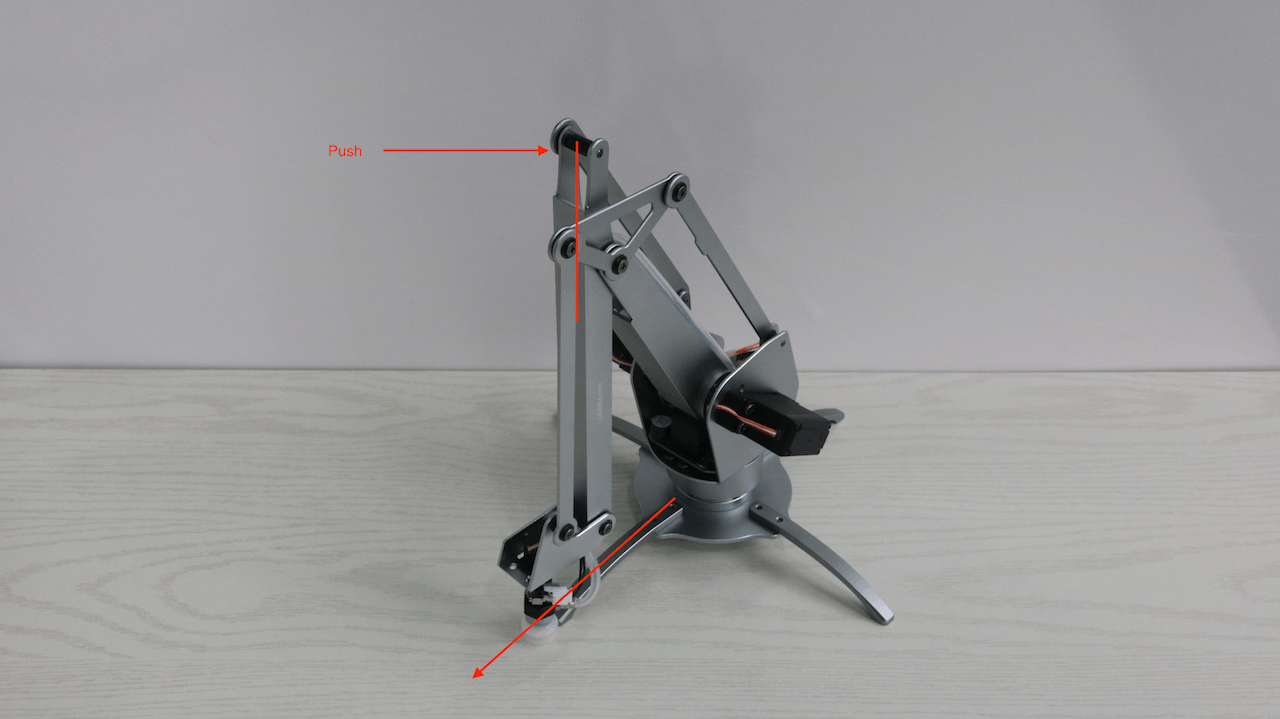
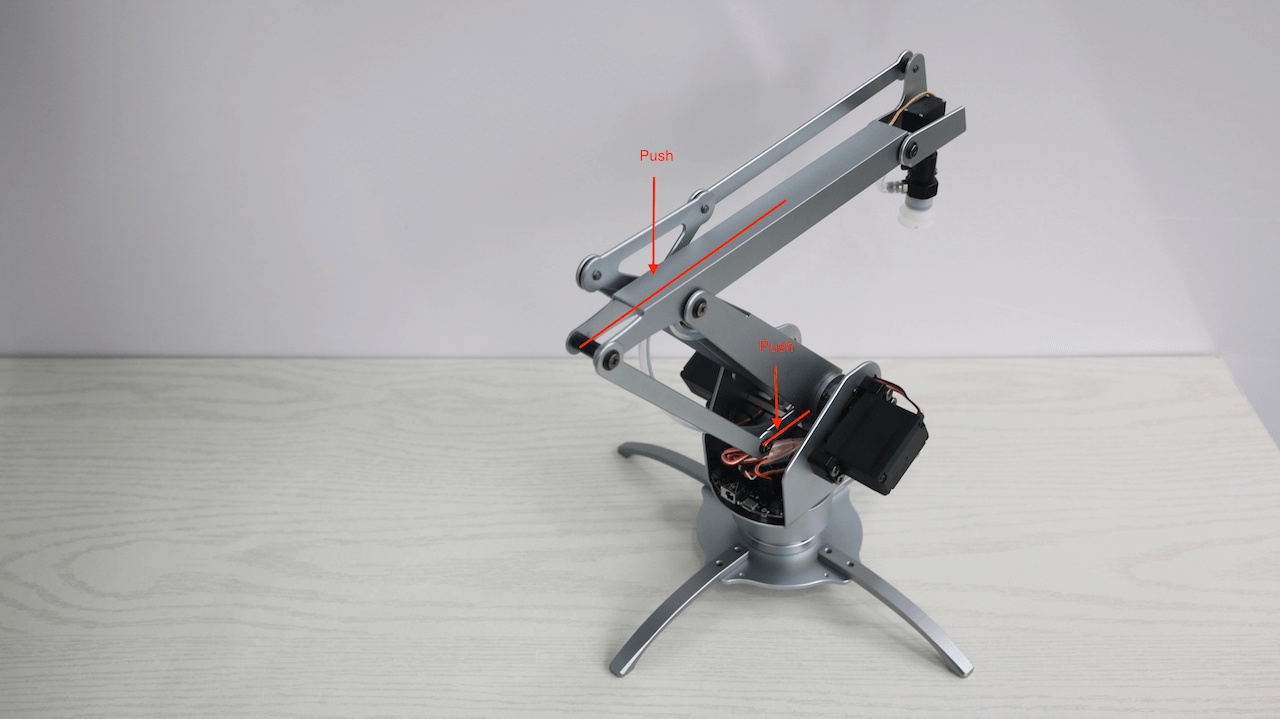
- Press Enter to continue, Then it would display the each servo calibration offset value, like below
Please move uArm to correct position, When complete, please press Enter to contine.
servo offset, bottom: 1.12, left: -0.49, right: -11.86, hand: 1.35,
Confirm Please Press Y, Retry press Other Key:
- After you press Y and Enter, will save the offset value into uArm.
Confirm Please Press Y, Retry press Other Key: y
    2.1 Saving Servo Offset into EEPROM
    2.3 Mark Completed Flag in EEPROM
3.0. Clearing Stretch Completed Flag in EEPROM.
    3.1 Saving Stretch Offset into EEPROM
    3.2 Mark Completed Flag in EEPROM
Calibration DONE!!
- Congratulations! Calibration completed!
uarm-miniterm
miniterm is a mini platform for you to accomplish basic controls of uArm by typing simple commands.
- Enter uArm Miniterm
Enter
uarm-miniterm, and you will see the following message (the format of the message may vary according to different operation systems):
$ uarm-miniterm
Welcome to use uArm Command Line - v0.1.3
Shortcut:
Quit: Ctrl + D, or input: quit
Clear Screen: Ctrl + L
Input help for more usage
- Connect with uArm All commands will only work when a uArm is connected. If you are using commands without a uArm connected, you will receive the following message:
>>> mv
No uArm is connected, please use connect
Enter “connect” to connect uArm with miniterm. If there are more than one uArm connected with your computer, miniterm will ask you to choose one.
>>> connect
Initialize uArm, port is /dev/cu.usbserial-AI04I17F...
Firmware Version: 1.7.3
- Control uArm with commands Enter “help” to see all commands enabled by the miniterm.
>>> help
uArm Command line Help Center

Please use connect before any control action
Shortcut:
Quit: Ctrl + D, or input: quit
Clear Screen: Ctrl + L

Documented commands (type help <topic>):
----------------------------------------
EOF    connect     firmware   gripper  mv    quit        servo
alarm  disconnect  get_coord  move_to  pump  read_angle  write_angle

Miscellaneous help topics:
--------------------------
msg

Undocumented commands:
----------------------
debug  help  set_polar
Example of command usage: Enter help move_to and you will get instructions of using this command.
>>> help move_to

        move_to, move to destination coordinate.
        format: move_to X Y Z or move_to X Y Z S
        X,Y,Z unit centimeter, S time - default 2 sec
        eg. move_to 12 -12 12
- Quit miniterm Press “Ctrl+D” or enter “quit” to quit anytime you want.